How to Share an iPhone Calendar with Family, a Partner or Android Users
Key answer In the Calendar app, tap Calendars, tap the info (i) button beside the iCloud calendar you want to share, then Add Person to invite someone. If the other person does not use iCloud (for example, they have a Galaxy phone), share a Google calendar and add the same Google account to your iPhone instead.
Which sharing method fits the other person’s device?
There are four ways to share. Decide what phone the other person uses and whether they need to edit, and the choice is easy.
| Method | Their device | What they can do | Good for |
|---|---|---|---|
| Add people to an iCloud calendar | iPhone, iPad, Mac (iCloud users) | View, or add and change if you turn on Allow Editing | A partner, a roommate, a few coworkers |
| Family Sharing “Family” calendar | Members of your Family Sharing group | See together and add events | Households that already share subscriptions and photos |
| Google Calendar sharing | Galaxy, iPhone, computers: anything | From free/busy only up to making changes and managing sharing, depending on permission | The other person has an Android phone, or work runs on Google |
| Public calendar link | Any calendar app that can subscribe by link | View only | Letting many people know about club or group events |
How do I share an iCloud calendar?
- Open the calendar list In the Calendar app, tap Calendars at the bottom.
- Tap the info button on the calendar Tap the (i) button beside a calendar under iCloud. You can invite people only on iCloud calendars.
- Add people Tap Add Person, type a name or email address, then tap Add. Their email address needs to be in your contacts.
- Set edit permission On the same screen, tap an invited person’s name and turn Allow Editing on or off. Off means view only.
- Have them accept The shared calendar only appears in their calendar list after they accept the invitation.
You get a notification each time someone changes a shared calendar. If that gets noisy, go to Settings, Notifications, Calendar, Customize Notifications and turn off Shared Calendar Changes.
What is the Family calendar?
When you set up Family Sharing on your Apple Account, a shared “Family” calendar automatically appears on each member’s devices (per Apple’s support documentation). You do not have to invite people one by one, so it takes the least effort if your household already uses Family Sharing.
Put only events everyone needs to know about in the Family calendar, such as school pickups, family gatherings and doctor appointments, and keep personal events in your own calendar so nobody’s screen gets cluttered.
What if the other person has an Android phone?
Adding people to an iCloud calendar is for iCloud users, so for someone on a Galaxy phone it is easier to share a Google calendar.
- On a computer, open Google Calendar, find the calendar under “My calendars” on the left, and click More, then Settings and sharing.
- Under “Share with specific people or groups,” add their email, choose a permission and click Send. They add the calendar from the link in the email.
- On your iPhone, go to Settings, Apps, Calendar, Calendar Accounts, Add Account, Google and connect the same Google account. The steps are in How to add Google Calendar to your iPhone.
If they only need to see events, you can also turn on Public Calendar in the iCloud calendar’s info (i) screen and send the link with Share Link. People who get the link can subscribe and view, but not edit.
What if a shared calendar doesn’t show up?
- Did they accept the invitation? Until they do, it does not appear in their calendar list.
- Is it ticked in the list? In the Calendar app, a calendar needs a check mark beside it under Calendars for its events to show.
- Is the account’s calendar turned on? Go to Settings, Apps, Calendar, Calendar Accounts and turn on Calendars for that account.
- Shared from Google? Google automatically syncs only calendars under “My calendars.” Select the calendar at google.com/calendar/syncselect and save.
- Can’t edit? Check that the owner turned on Allow Editing for you, and that it is not a calendar you subscribed to by public link.
How do I see a shared calendar next to my own to-dos?
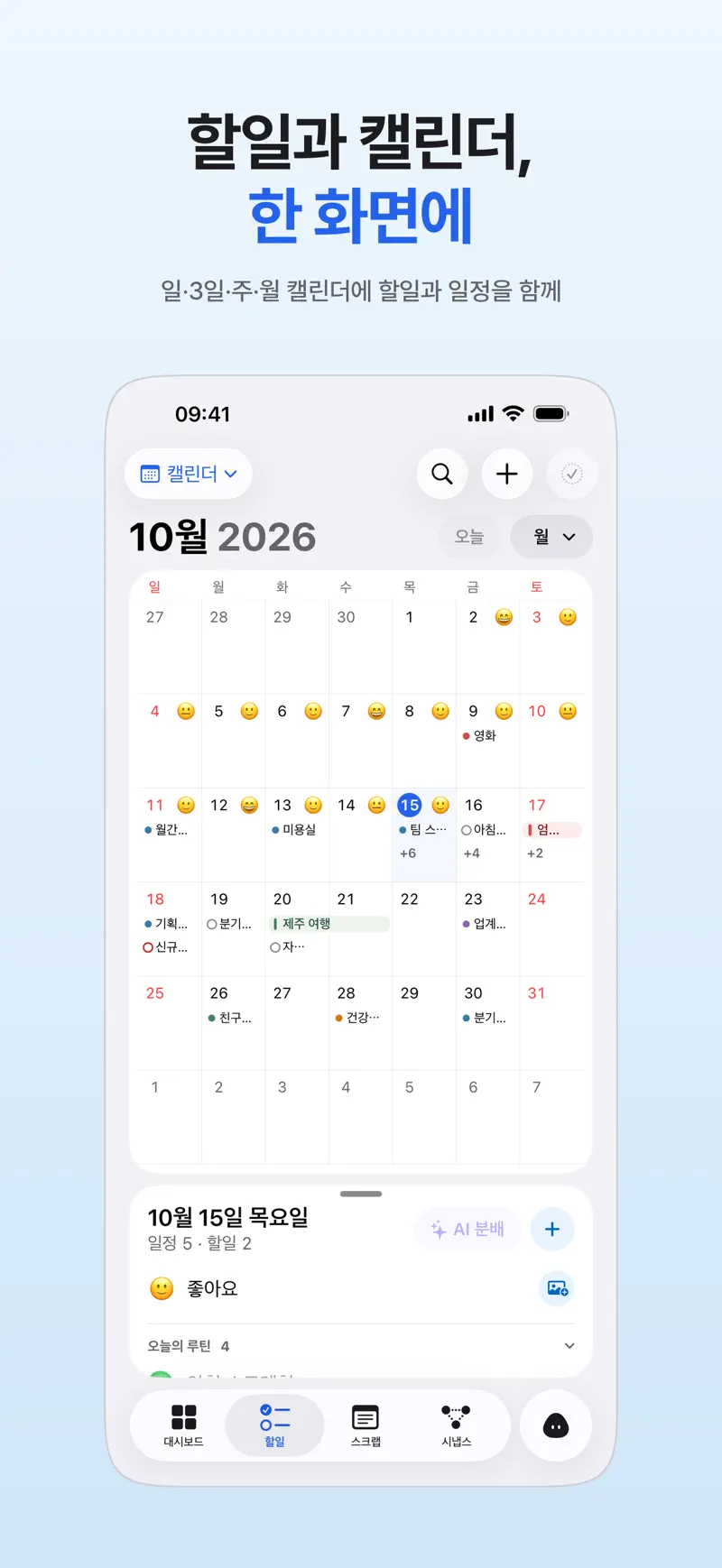
Aria does not have a feature for sharing calendars or tasks with other people. But any shared calendar that shows in your iPhone Calendar app appears in Aria’s day, 3-day, week and month views next to your tasks once you tap Connect Calendar.
Shared calendars where you have edit permission also appear in the Default Calendar list in Aria settings. Choose one, and an event you ask the AI for, such as “Family dinner Saturday at 6 PM,” goes into that shared calendar. If you do not choose one, events go into the “Aria” calendar, and view-only calendars are not listed. If events are missing, check iPhone calendar events not showing up in Aria.
FAQ
How do I share my iPhone calendar with someone on Google?
Adding people to an iCloud calendar is for iCloud users. To work with someone on Google, create the events in a Google calendar and share it, then add that Google account to your iPhone so it also shows in the iPhone Calendar app. If they only need to view, you can send an iCloud public calendar link instead.
Can the people I share with edit events?
On an iCloud calendar, you have to turn on Allow Editing for each person. On Google Calendar, you need to give them “Make changes” permission or higher. A calendar someone subscribed to by public link is view only.
How do I delete a shared calendar or leave it?
As the owner, tap Calendars, the calendar’s info (i) button, the person’s name, then Delete to stop sharing with that one person. If you were invited, delete the calendar or unsubscribe from the bottom of the same info screen. Deleting an iCloud calendar itself also deletes the events in it, so be careful.
iPhone · iPad · Mac · iOS 26.0 or later · English · Korean