To-Do Calendar App: Tasks and Events on One Screen
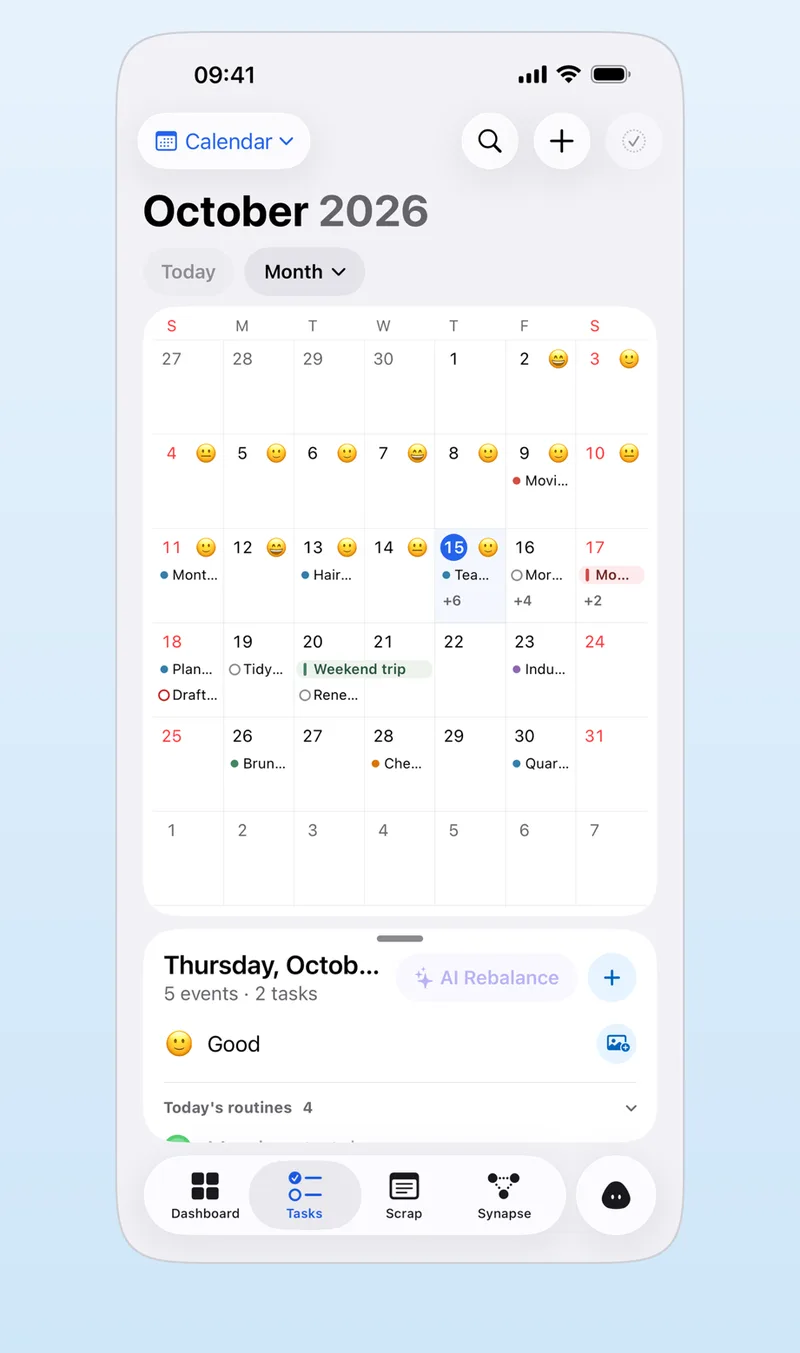
Key answer Aria’s calendar shows tasks and events together in day, 3-day, week and month views. Drag a task onto the timetable to set its time. Connect your iPhone calendar and events from iCloud, Google and other accounts show up alongside them.
What views are there?
There are four: day, 3-day, week and month. The month view shows tasks and events on each date, and you can also keep a mood and a photo for the day.
How do you block time for a task?
Drag a task onto the timetable and that time is set. For an alarm time, slide the ruler to pick the date and time together in one go. The idea behind it is covered in the time blocking method.
Can you see your iPhone calendar events too?
Yes. Tap Connect Calendar in Aria and allow access, and events from the calendars on your iPhone (iCloud, Google and others) appear together. Subscribed calendars such as holidays are read-only, so you cannot move or change them in Aria. You can pick the default calendar where AI-created events are saved in Settings. If events do not appear, see iPhone calendar events not showing in Aria.
Is there a widget?
There is a monthly calendar widget. How to put one on your Home Screen is in how to add a to-do widget.
How do you plan a day like a planner?
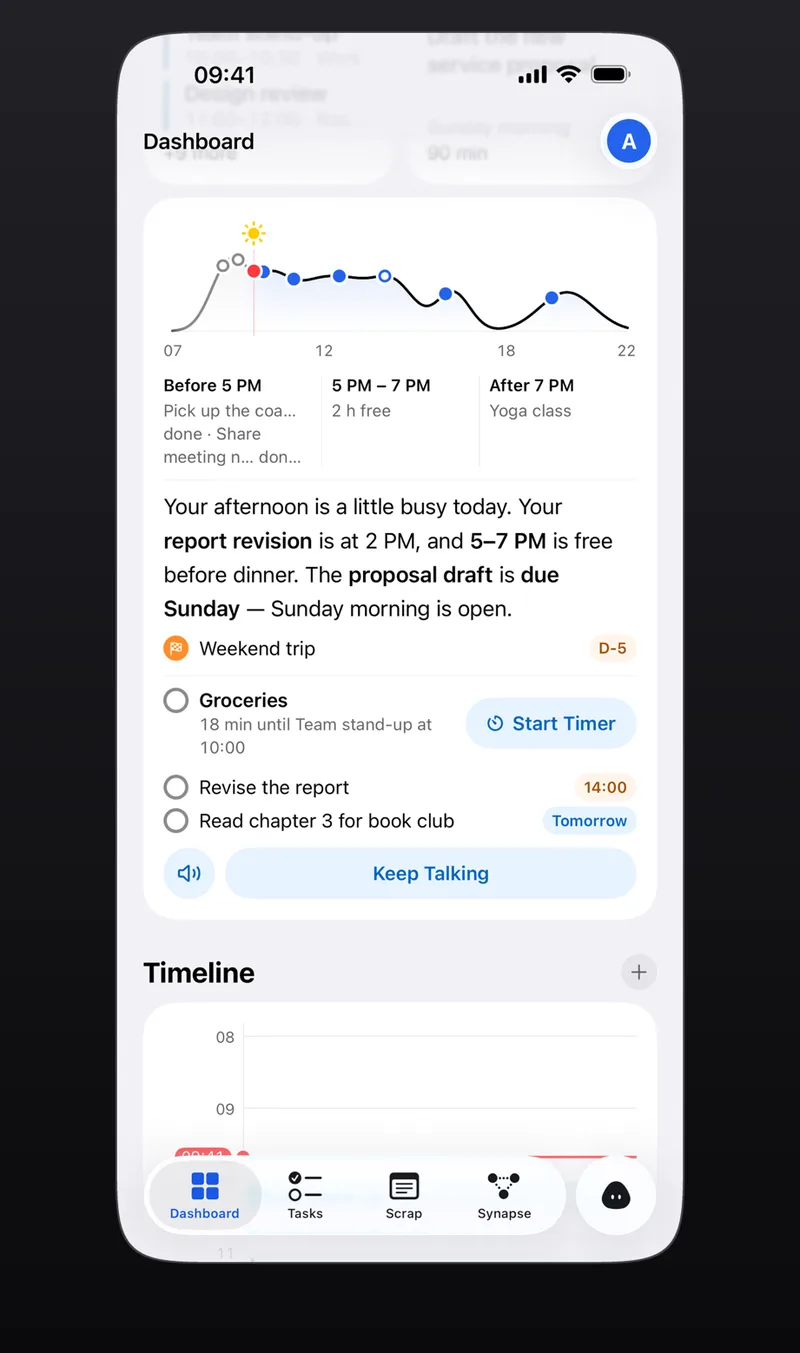
The morning briefing points out today’s events and what to do first, and the dashboard shows the flow of your day at a glance. Start your first task with the timer under Start today. More on briefings in the AI scheduling assistant guide.
Frequently asked questions
Can I see Google Calendar events in Aria?
Yes, if the Google account is added to your iPhone’s calendars. Tap Connect Calendar in Aria, allow access, and those events show next to your tasks.
Can I edit holidays or other subscribed calendars in Aria?
No. Subscribed calendars such as holidays are read-only in Aria.
Is the calendar free?
Yes. Aria’s non-AI features, including the calendar views, are free.
iPhone · iPad · Mac · Apple Watch · iOS 26.0 or later · English · Korean